 martinberger.swiss
Connecting Oracle Enterprise Manager 24ai to ServiceNow closes the gap between monitoring and ticketing. When an OEM incident fires, a ServiceNow ticket gets created - with a direct link back to the incident. No manual handoff, no missed alerts.
This guide covers a full offline setup: updating the Self Update catalog without internet access, loading the plug-in via emcli, trusting the ServiceNow SSL certificate, and wiring up the connector.
Example environments used in this guide
- OMS Host:
https://oms-allinone.internal:7803/em - ServiceNow:
https://your-instance.service-now.com
The Big Picture
| Step | Action |
|---|---|
| 1 | Catalog Offline Update |
| 2 | Download the Plug-In |
| 3 | Load the Plug-In |
| 4 | Configure OMS for SSL |
| 5 | Configure the Connector |
| 6 | Test Ticket Creation |
Step 1 - Catalog Offline Update
Verify OEM is set to offline patching. If you are online, then just download and apply it in the Plug-In menu.
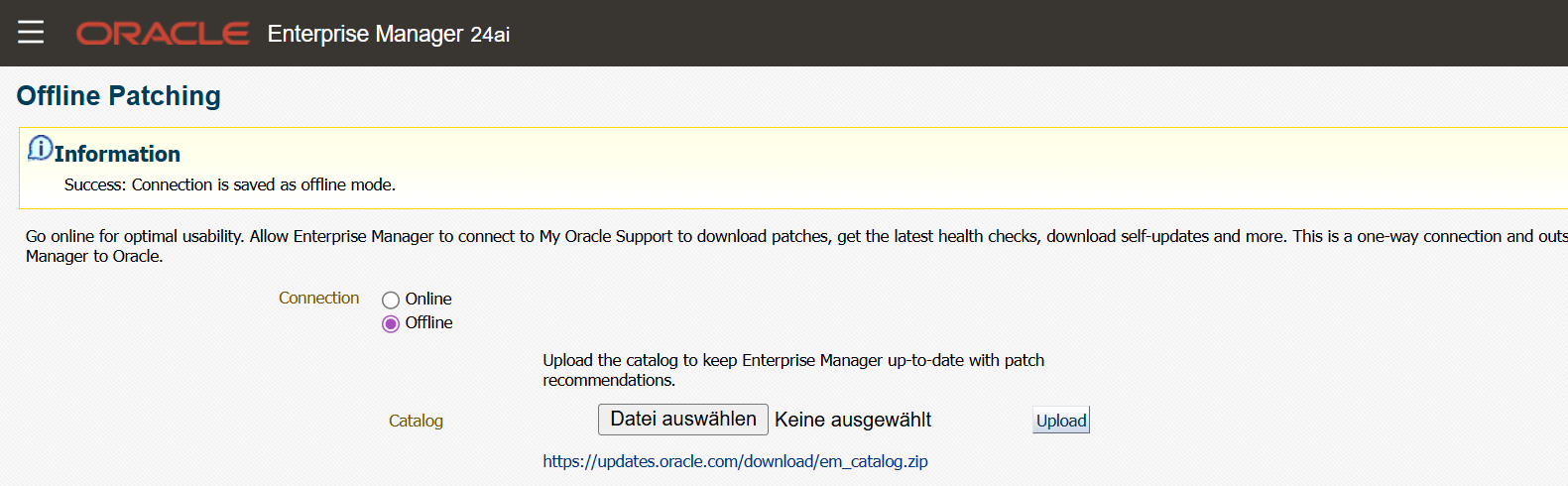
Download the catalog ZIP from My Oracle Support - do not extract - and upload it via Setup → Extensibility → Self Update. Select the file and press Upload. A refresh job starts automatically.

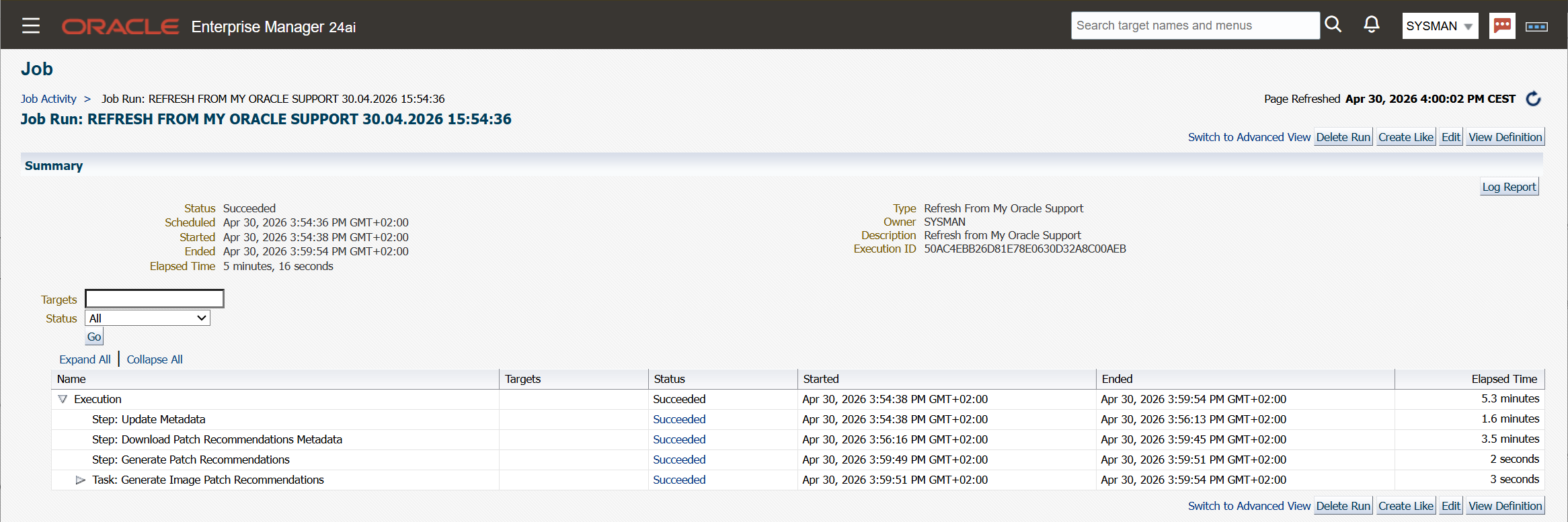
Verify the job via the provided link. Confirm the status shows Succeeded.
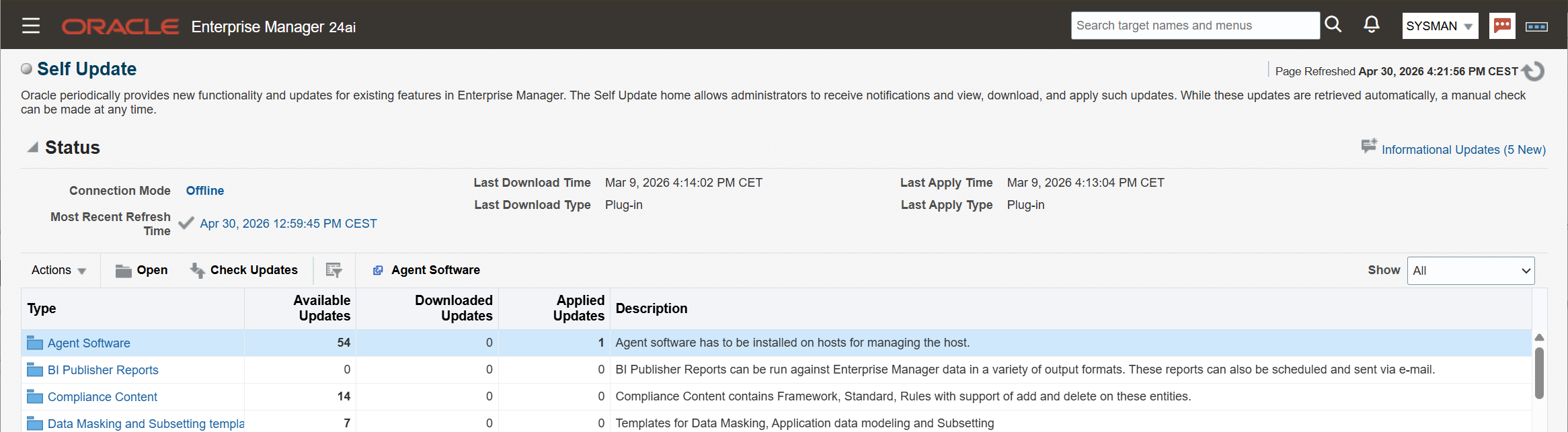
Navigate to Setup → Extensibility → Self Update. Confirm Most Recent Refresh Time matches today’s upload.
Step 2 - Download the Plug-In
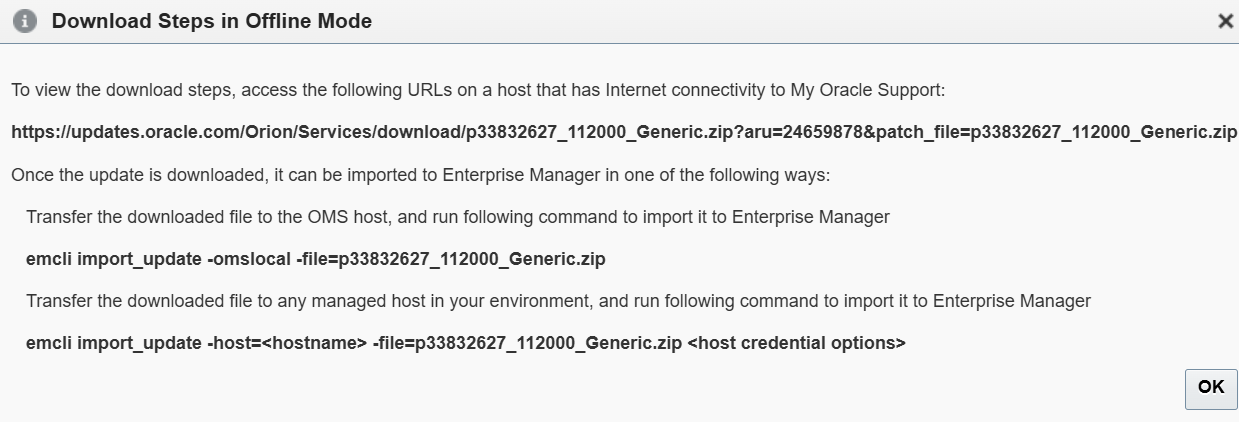
Navigate to Setup → Extensibility → Self Update. Select ServiceNow REST Ticketing Connector and click Download.
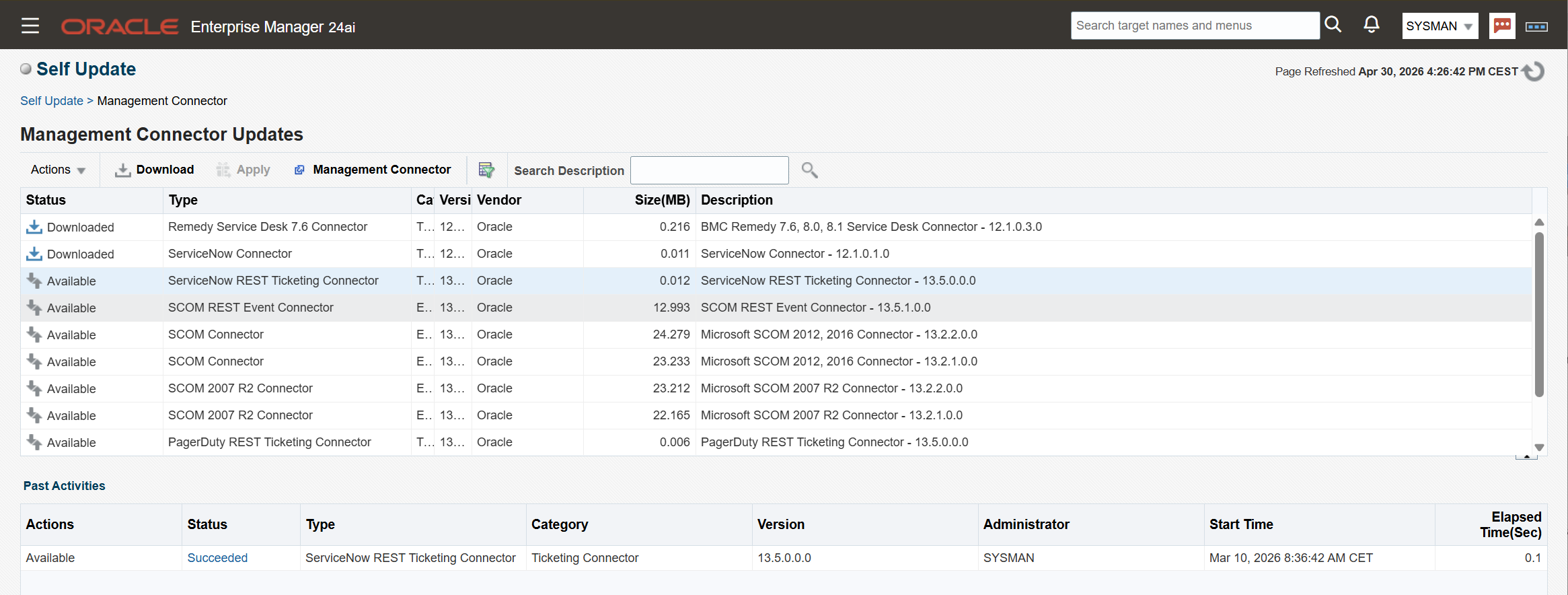
A popup displays the download URL. Download the file and transfer it to the stage directory. Patch Number: 33832627
oracle@oms-allinone:/u01/app/oracle/stage/ [rdbms23] ll
-rw-r--r--. 1 oracle oinstall 10128 Apr 30 17:06 p33832627_112000_Generic.zip
Step 3 - Load the Plug-In
Set ORACLE_HOME and import the plug-in using emcli. A full path to the ZIP is required.
export ORACLE_HOME=/u01/app/oracle/middleware/oms_home/

$ORACLE_HOME/bin/emcli login -username=sysman
$ORACLE_HOME/bin/emcli sync
$ORACLE_HOME/bin/emcli import_update \
  -file=/u01/app/oracle/stage/p33832627_112000_Generic.zip \
  -omslocal
Expected output:
Processing update: Management Connector -
    ServiceNow REST Ticketing Connector - 13.5.0.0.0

Successfully uploaded the update to Enterprise Manager. Use the Self Update Console to manage this update.
Navigate to Setup → Extensibility → Self Update. Select ServiceNow REST Ticketing Connector and press Apply.
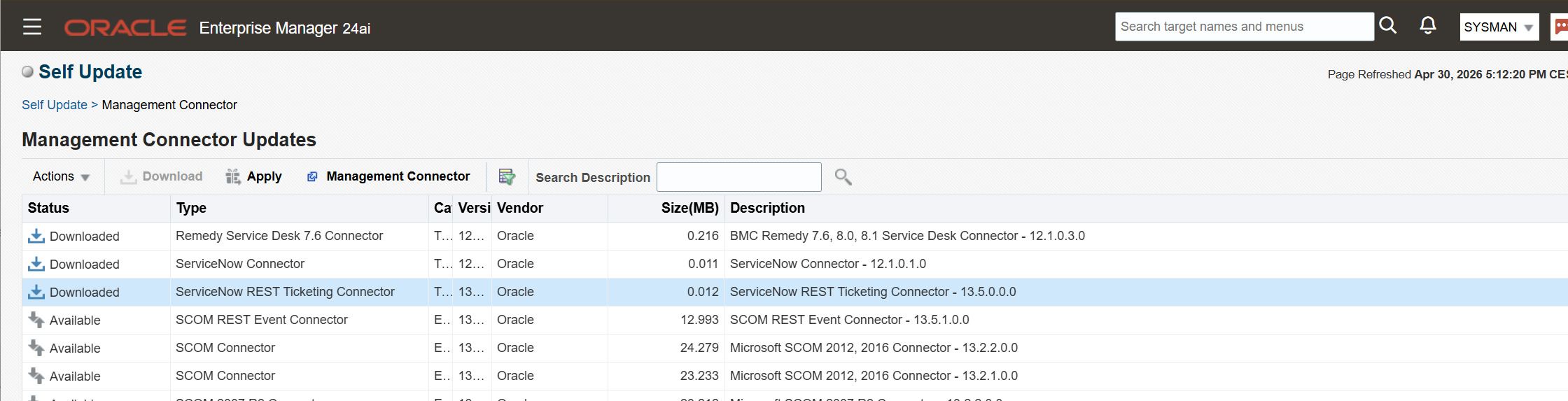
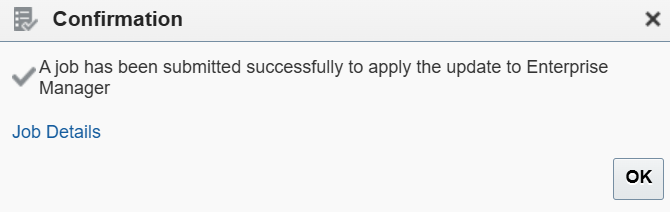
Confirm the prompt. Verify the job status shows SUCCEEDED.
Navigate to Setup → Extensibility → Connectors. The ServiceNow REST Ticketing Connector now appears in the list.

Step 4 - Configure OMS for SSL
OMS must trust the ServiceNow SSL certificate before the connector can communicate. This step is easy to miss - skipping it causes a connection timeout during connector verification.
Step 4a - Retrieve the ServiceNow Certificate
Run from the OMS host. If the OMS has no internet access, run this from any host that does.
cd /u01/app/oracle/middleware/gc_inst/em/EMGC_OMS1/sysman/config/
openssl s_client -tls1_2 -connect your-instance.service-now.com:443
The output shows the full certificate chain. Extract the certificate block - everything between and including the BEGIN/END markers:
-----BEGIN CERTIFICATE-----
MIIHIjCCBgqgAwIBAgIQBAolr75OQGpL88xVAPjPaTAN...
[...]
JblQOrR+
-----END CERTIFICATE-----
Step 4b - Add Certificate to OMS Trust Store
Append the full certificate block to b64LocalCertificate.txt and verify the SSL handshake works.
curl --cacert b64LocalCertificate.txt \
  "https://your-instance.service-now.com/incident.do?SOAP"
The response User Not Authenticated confirms the certificate is trusted and the SSL handshake succeeds.
Step 4c - Restart OMS
emctl stop oms
emctl start oms
Step 5 - Configure the Connector
Before configuring, create a ServiceNow test incident and note the incident number - it is needed for the verification step.

Navigate to Setup → Extensibility → Management Connectors. Select connector type ServiceNow REST Ticketing Connector → Go.

Enter a Connector Name → OK.

Select the new connector → Configure.

Upload any company-specific ServiceNow templates if available. Set the endpoint URLs, credentials, and the test incident number.
| Operation | URL |
|---|---|
| createTicket | https://your-instance.service-now.com/api/now/table/incident |
| getTicket | https://your-instance.service-now.com/api/now/table/incident?number=#TKT_KEY# |
| updateTicket | https://your-instance.service-now.com/api/now/table/incident/#TKT_KEY# |
Important: Enable the subdomain checkbox - without it, EM24ai incidents will not display a clickable link to ServiceNow.
Click OK.
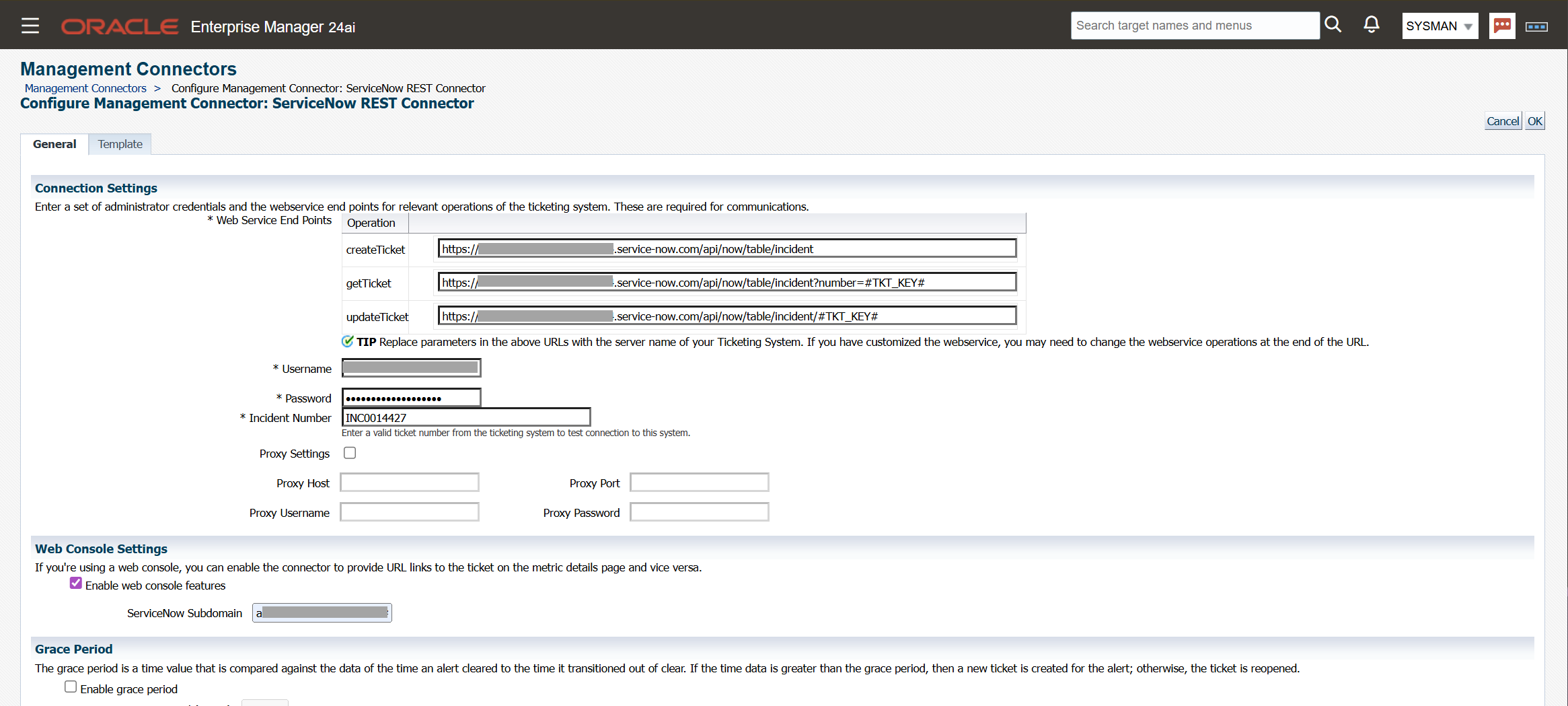
A green status indicator confirms a successful connection.

Troubleshooting - Failed Verification

Most common cause: OMS was not restarted after adding the SSL certificate.
Check the log for a SocketTimeoutException pointing to the ServiceNow host on port 443:
tail -f /u01/app/oracle/middleware/gc_inst/em/EMGC_OMS1/sysman/log/emoms.trc
Fix: restart OMS as in Step 4c.
Step 6 - Test Ticket Creation
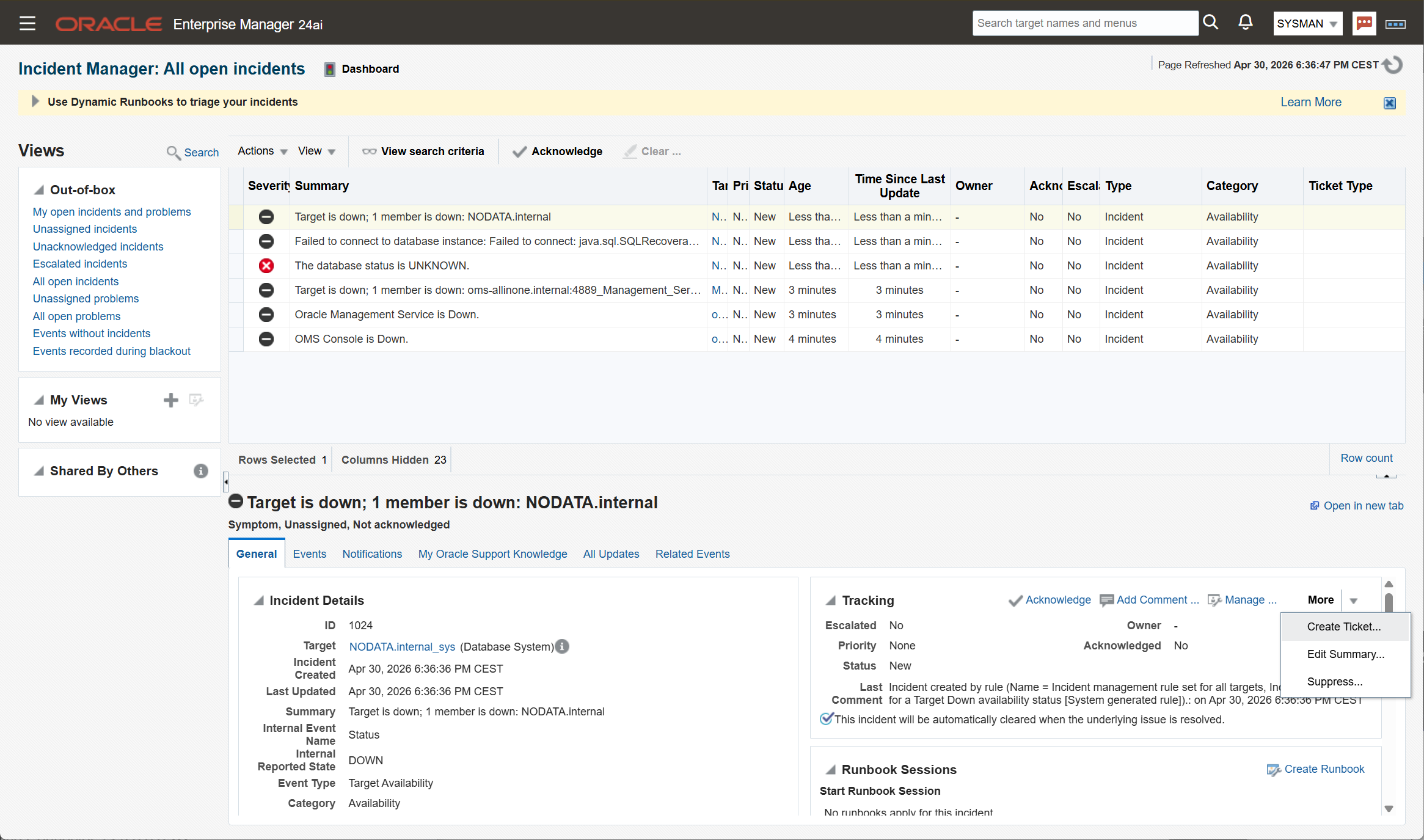
Navigate to Enterprise Monitoring → Incident Manager. Select any open incident. If none exist, stop a listener or pluggable database to trigger one.
Click More → Create Ticket.
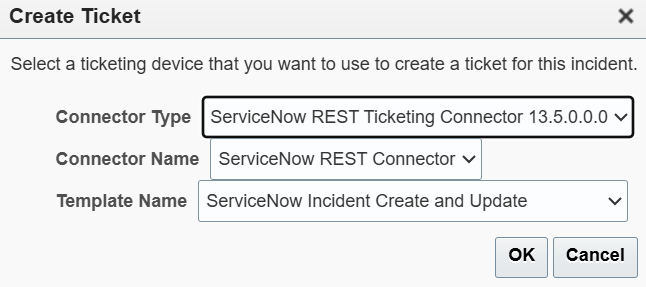
Confirm the connector settings → OK.
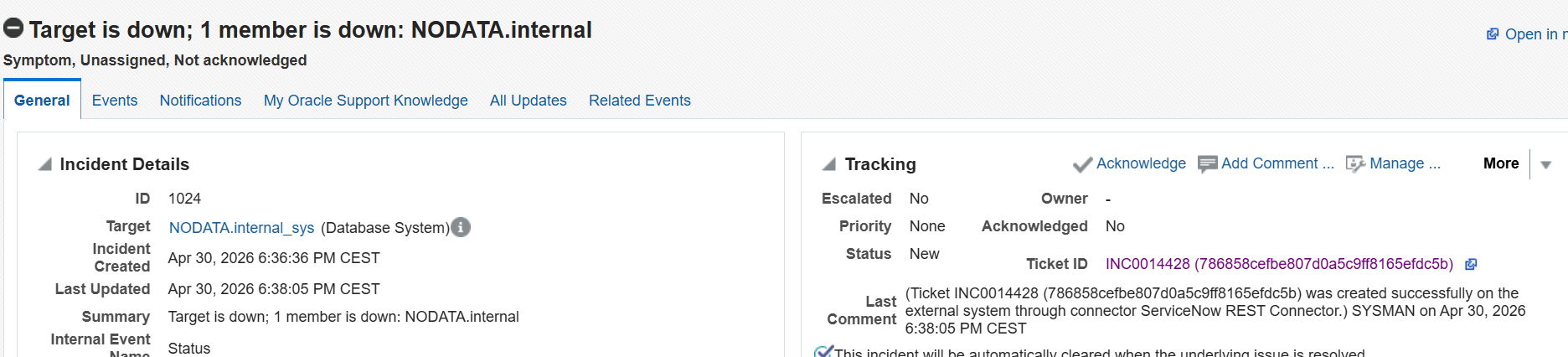
A confirmation message appears in the status bar. The incident now shows a ServiceNow ticket number with a direct link.
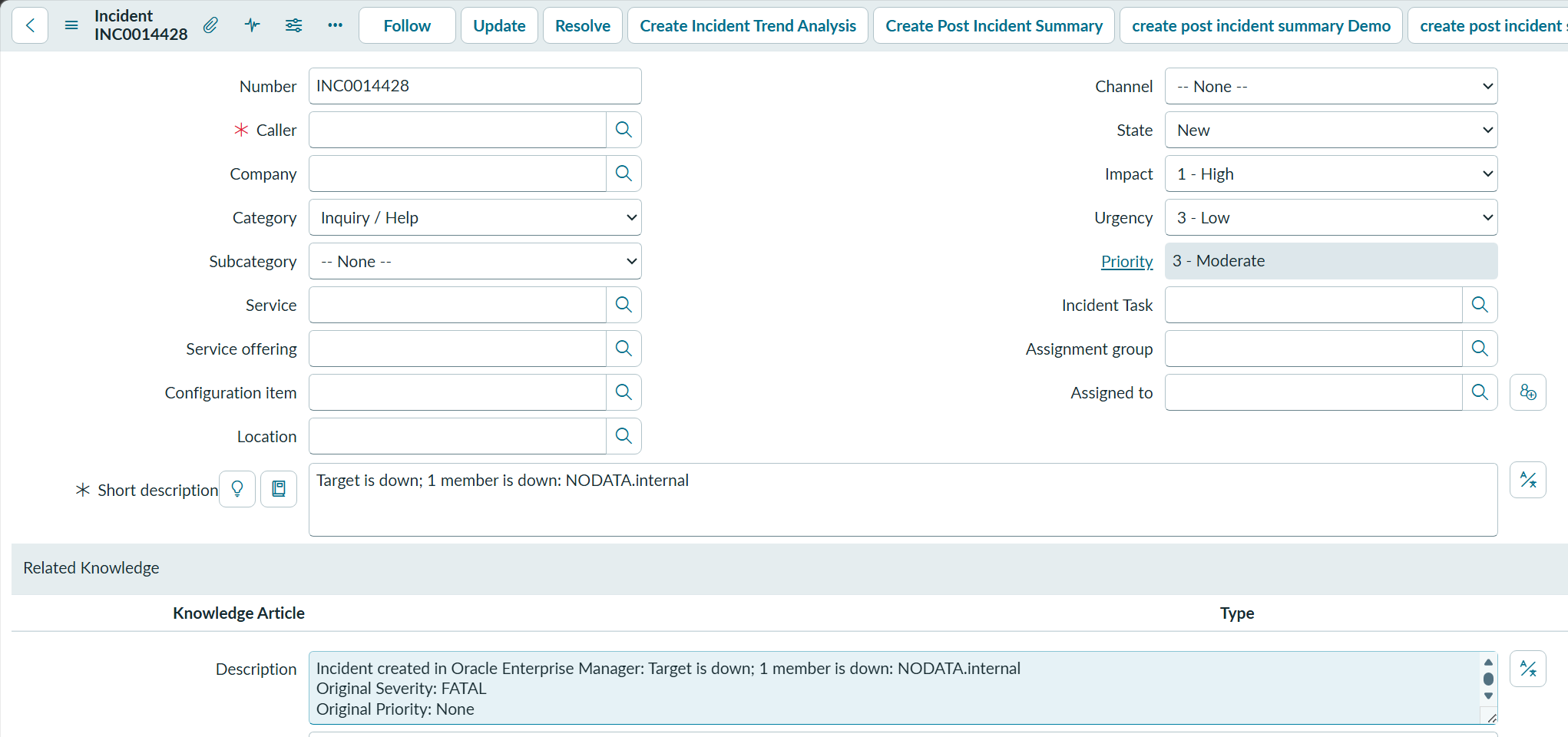
Click the link to open the incident directly in ServiceNow.
Summary
OEM incidents now create ServiceNow tickets automatically and link back to each other. The setup has two layers: the SSL trust at the OMS level, and the connector configuration in OEM. Both must be in place for it to work.
Next step: configure Rules and Rulesets in OEM to trigger ticket creation automatically based on incident type or severity - no manual Create Ticket click required.
Tested on Oracle Enterprise Manager 24ai RU05.
Links
- Oracle EM 24ai ServiceNow Connector Documentation: https://docs.oracle.com/en/enterprise-manager/cloud-control/enterprise-manager-cloud-control/24.1/snowc/
- Oracle SSL/HTTPS Configuration: https://docs.oracle.com/en/enterprise-manager/cloud-control/enterprise-manager-cloud-control/24.1/snowc/enabling-ssl-https-1.html#GUID-1284AC8D-15D6-45CA-8444-DC8B68287CB4
- ServiceNow KB0563633: https://hi.service-now.com/kb_view.do?sysparm_article=KB0563633